
Invoice
Version6.2.0
Compatibility>=3.2.0
Categoryadmin-extensions
Downloads1.5K monthly
Last updatedJul 21, 2026
A plugin for generating customizable PDF invoices for orders. Supports incremental invoice numbering, credit invoices, and customizable Handlebars templates.
Migration from V3.x to V4.0.0
In v4 the field invoice.isCreditInvoice was changed from a getter to a physical database column. To populate the column you need to:
- Back up your database!
- Install the invoices plugin v4.x and generate + run a database migration. This introduced the new database field
isCreditInvoicewhere all values are 'false'. - Run the query
UPDATE invoice SET isCreditInvoice = 1 WHERE orderTotals LIKE '%total":-%';to set the value to 'true' for invoices that have a negative total. - :warning: The plugin now uses Puppeteer, so your Docker image might need additional dependencies installed. See Getting Started below!
Getting started
- Install the plugin with
yarn add @pinelab/pinelab-invoice-plugin - Add the following config to your
vendure-config.ts:
Ts
- Run a migration, to add the Invoice and InvoiceConfig entities to the database.
- Start Vendure and login to the admin dashboard.
- Make sure you have the permission
AllowInvoicesPermission - Go to
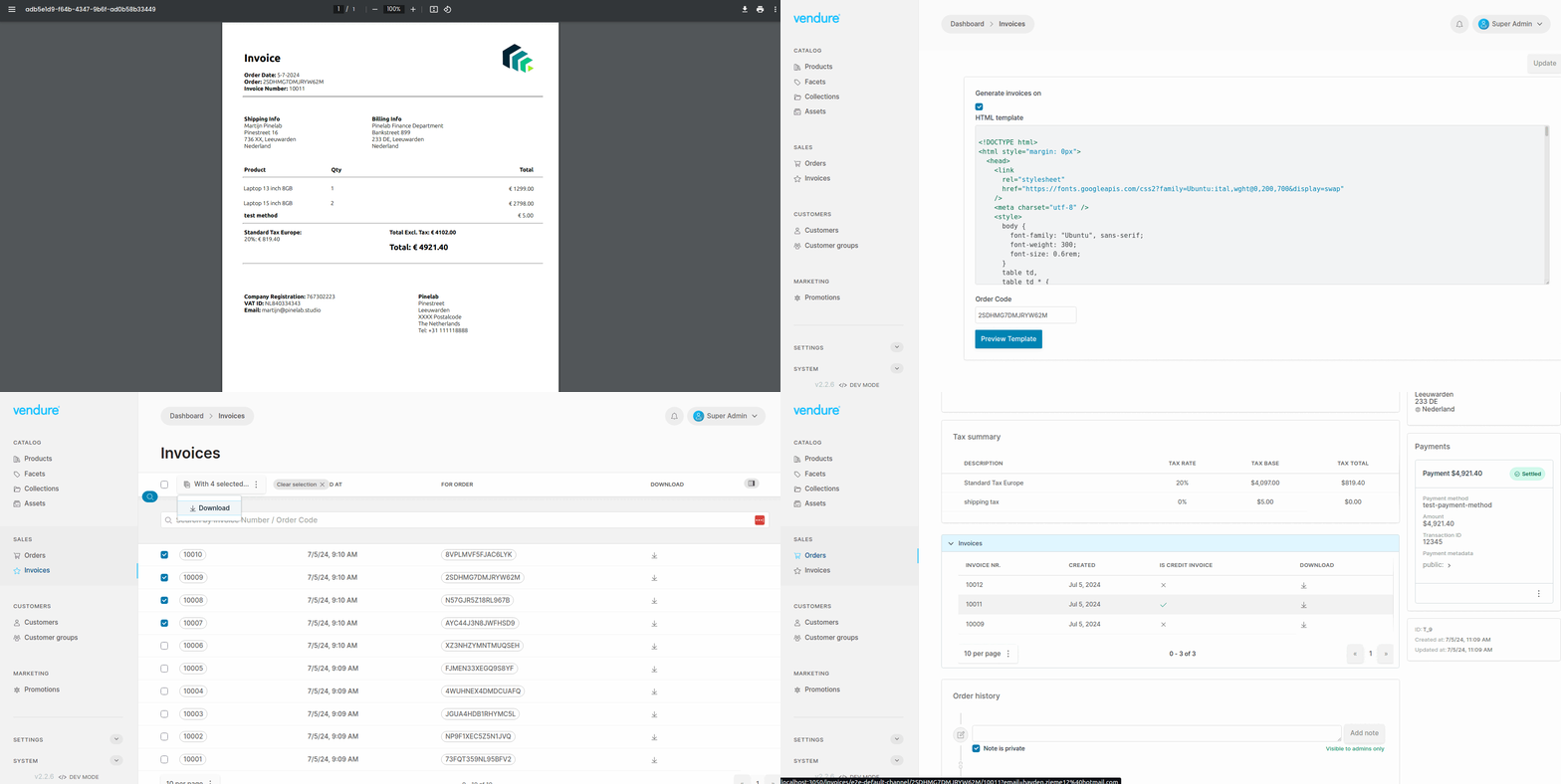
Sales > Invoicesto see all generated invoices. The order detail page will have generated invoices for that order only. - Go to
Settings > Invoicesto enable invoice generation and edit the invoice handlebars template. - Check the checkbox to
Enable invoice generationfor the current channel on order placement. Invoices are generated on order placement. - A default HTML template is set for you. Click the
Previewbutton to view a sample PDF invoice.
Running in Docker / production
Puppeteer bundles its own Chromium binary, which is downloaded during npm install. This can be unreliable in containerized environments: the download may silently fail on certain base images, behind proxies, or in air-gapped CI. When the bundled binary is missing at runtime, invoice generation fails with Could not find Chrome.
The recommended approach is to install system Chrome and tell Puppeteer to use it via the PUPPETEER_EXECUTABLE_PATH env var. This is more reliable, produces smaller images, and avoids the postinstall download entirely.
Dockerfile
Note:
--no-sandboxis required when running Chrome as root inside a container. The plugin passes this flag by default. If you run as a non-root user, you can remove it viapuppeteerLaunchOptions.
Custom Puppeteer launch options
You can customize how Puppeteer launches Chrome in two ways. Both are fully backward compatible — when neither is set, the plugin uses its defaults (headless: true, args: ['--no-sandbox']).
Option 1: Plugin config (recommended for most cases)
Ts
Any Puppeteer launch option can be passed here. The plugin merges your options over its defaults (your values win).
Option 2: PUPPETEER_EXECUTABLE_PATH env var
Bash
This env var is Puppeteer's standard convention. It takes the highest precedence — even over executablePath set in puppeteerLaunchOptions. This is useful for overriding the Chrome path per environment (e.g. different paths in CI vs production) without changing code.
Adding invoices to your order-confirmation email
Add the following link to your email template:
https://<your server>/invoices/e2e-default-channel/C7YH7WME4LTQNFRZ?email=hayden.zieme12@hotmail.com.
When the customer clicks the link, the server will check if the ordercode, channelCode and customer emailaddress
match with the requested order. If so, it will return the invoice.
This link will always return the first invoice generated for an order. If invoices were recreated via the Admin UI, you can specify the invoice number in the url.
Recreating invoices and credit invoices
On the order detail page you can click the button recreate invoice to generate a new invoice based on the current state of the order.
By default, this will first create a credit invoice, then a new invoice. A credit invoice basically voids the previous invoice before generating a new one.
To send emails when new invoices are created, you can listen for InvoiceCreatedEvents:
Ts
Credit invoices use the same template as regular invoices, so make sure to handle credit invoice data. Checkout the default template for an example on how to use it for credit invoices.
Credit invoices will receive additional data with the default loadDataFn(). This data is needed to create valid credit invoices:
Ts
To disable the credit invoice behaviour:
Ts
Increase invoice template DB storage
By default, the plugin uses TypeOrm's text to store the invoice template in the DB. This might not be enough, for example when you'd like to add base64 encoded images to your invoices. This will result in the error ER_DATA_TOO_LONG: Data too long for column 'templateString'. You can specify your DB engine with an env variable, and the plugin will resolve the correct column type:
Shell
Don't forget to run a DB migration: This will delete any data in the templateString column!
Checkout https://orkhan.gitbook.io/typeorm/docs/entities for available databases and column types.
Google Storage strategy
This plugin also includes a strategy for storing invoices in Google Storage:
yarn add @google-cloud/storage
Ts
- Enable the service account IAM in Google Cloud Console
- Add role 'Service account token creator' to the Cloud Run service account
The strategy will use the projectId and credentials in from your environment, which is useful for Google Cloud Run or Cloud Functions.
However, if you want to run it locally or on a custom environment, you need to pass a keyFile to the plugin. This is needed to generate signedUrls, which are used to give customers temporary access to a file on Storage. More info about locally using signedUrls: https://github.com/googleapis/nodejs-storage/issues/360
Ts
Amazon S3 Storage strategy
This plugin also includes a strategy for storing invoices on Amazon S3.
yarn add aws-sdk
Ts
Custom file storage
Implement your own strategy for storing invoices by implementing one of these interfaces:
Remote storage strategy
RemoteStorageStrategy for storing PDF files on an external platform like Google Cloud or S3. It redirects the user to
a public/authorized URL for the user to download the invoice PDF.
Ts
Local file storage
LocalFileStrategy streams the invoice through the Vendure service to the user.
Ts
Custom invoice numbering and custom template data
Implement a custom loadDataFn to pass custom data into your template or generate custom invoice numbers:
Ts
Make sure to return the data needed for credit invoices when shouldGenerateCreditInvoice is defined.
You can access this data in your HTML template using Handlebars.js:
Html
Exporting to external accounting platforms
You can automatically export each created invoice to an accounting platform by including an accounting strategy in the plugin. See one of the examples below for more details.
Xero UK
This strategy exports each invoice to Xero (UK only). To get started:
- Create an OAuth app by clicking 'New app' here: https://developer.xero.com/app/manage
- This integration uses 'Custom connection', because we are syncing data from machine to machine. See this page for more details on app types.
- Select the scopes
accounting.transactions,accounting.contactsandaccounting.settings.read. - Get your client ID and client secret, and pass them into the plugin like so:
Ts
npm install xero-nodeto install the Xero NodeJS client.
If you are getting { error: 'invalid_client' } during startup, you might have to recreate your Xero app on https://developer.xero.com/app/manage.
Custom accounting strategy
You can implement your own export strategy to export invoices to your custom accounting platform. Take a look at the included XeroUKExportStrategy as an example.
Migrating from V1 to V2 of this plugin
- Always create a backup of your database
- Install the plugin and generate a migration
- In your migration file, add the function
migrateInvoices(queryRunner)to the bottom of theupfunction in your migration file, like so
Ts
- Run the migration.
Changelog
- Migrated to React Dashboard
- Local storage strategy now saves invoices in a subfolder per channel (
invoices/<channelToken>/<filename>), consistent with the Google Storage strategy. No need to migrate old paths, references stay in tact.
- Fixed server crash when invoice file is missing from disk.
LocalFileStrategy.streamFile()andstreamMultiple()now check file existence before streaming and attach error handlers to prevent unhandled stream errors. - Fixed duplicate invoice number generation when two orders are processed concurrently. The plugin now retries with a new number on unique constraint violations.
- BREAKING: The recommended Docker setup now uses system-installed Chrome instead of Puppeteer's bundled Chromium. Consumers should update their Dockerfile to install
google-chrome-stableand setPUPPETEER_EXECUTABLE_PATH=/usr/bin/google-chrome-stable. See the README for a working Dockerfile. - Added
puppeteerLaunchOptionsconfig option for passing custom options topuppeteer.launch()(e.g.executablePath,args,timeout). - Added
PUPPETEER_EXECUTABLE_PATHenv var support to override the Chrome binary path without code changes.
- Upgraded to Vendure 3.6.3
- BREAKING: Removed legacy Angular admin UI (
src/ui/). The plugin now exclusively uses the React Dashboard via@vendure/dashboard.
- Fixed
getMostRecentInvoiceForOrderto return the latest invoice instead of the oldest one. - Fixed cancellation regeneration logic: when an order is cancelled but still has a remaining total (for example shipping costs), the plugin now creates a credit invoice and a new invoice, instead of credit-only.
- Upgraded to Vendure 3.5.3
- Updated license to MIT
- Documentation update: remove paid plugin notice, free for all!
- Documentation update
- Updated official documentation URL
- Removed license check completely, also removed the dependency on @vendure-hub/vendure-hub-plugin
- Moved to @pinelab/pinelab-invoice-plugin, which means the plugin is free again!
- Disabled license check, because Vendure license server is offline
- Upgrade to Vendure to 3.3.2
- Don't create invoice job for orders that don't have an orderPlacedAt date.
- Notify admins that they need to regenerate the invoice, when the order total doesn't match the invoice total anymore.
- Include surcharges as relation, to prevent incomplete tax summaries, and thus incomplete credit invoices
- Update Vendure to 3.1.1
- Better error message extraction from Xero API response
- Limit search term for looking up contacts in Xero by max 50 characters, to prevent Xero API errors
- Log unknown errors on invoice with timestamp when accounting export fails
- Exporting credit invoices via accounting strategies now have their own method interface
- Don't allow accounting export when the order totals changed, to prevent mismatch between accounting export and invoice
- Added Due Date to Xero exports, which is needed for invoice approval
- Try to find Xero contact by name first, then by email address
- Log created credit note and invoice totals when creation succeeded
- Return error to Admin when Accounting Export job couldn't be created
- Introduced exporting invoices to external Accounting platforms
- Added
isCreditInvoiceas column in the DB in an Invoice - Created a reference to parent invoice for credit invoices
invoice.isCreditInvoiceFor. This is only populated for invoices generated with V4. - Replaced pdf-creator-node (which uses PhantomJS) with Puppeteer, because PhantomJS is deprecated.
- Show
Regenerate invoiceas warning button when order total differs from the latest invoice total ( see #485)
- Update compatibility range (#480)
- Fetch customer relation for orders by default
- Important performance improvement for projects with larger amounts (> 60000) of invoices
- Improved default HTML template
- Allow setting a start invoice number, from where the counting should start
- Consumers must supply a valid license key. See LICENSE for more details
- Without valid license key, the admin UI functionality is restricted, but invoice generation will still continue
- Publishing to Vendure Hub registry from now on: https://registry.next.vendure.io/
- Hide invoices component on order detail when user doesn't have permission
- Updated Vendure to 2.2.6
- Allow searching by invoice number in Invoices list
- Don't throw errors when a cancelled invoice doesn't have a previous invoice, but log and return instead.
- Sort invoices by created at
- Invoice listing page and bulk download of invoices
- When an order is cancelled, generate credit invoice, and no invoice regeneration after that
- Prevent the possibility of connecting the wrong invoice file to an order with concurrent invoice generation. See #433
- Work on ui improvements as described in #352
- Sort by latest invoices first in admin UI
- Don't throw error for orders without customer, because the order can be in an active state
- Added script for migrating to V2
- Updated default template to support credit invoices
- Allow creating new invoices for orders via the Admin UI. Credit invoices will be generated when a previous invoice exists.
- Credit invoice generation can be disabled, the plugin will then just generate a new invoice.
- BREAKING: DB migration is needed, check the README on how to migrate from V1 to V2.
- BREAKING: When using credit invoices, make sure to update your template so it can handle credit invoices. Checkout the included
defaultTemplateas reference. - BREAKING: Downloading multiple invoices has been removed. Invoices are now downloaded on a per order basis via the Admin UI.
- Updated vendure to 2.1.1
- Allow specifying invoice template storage in DB by specifying DB engine: INVOICES_PLUGIN_DB_ENGINE=mysql (#243)