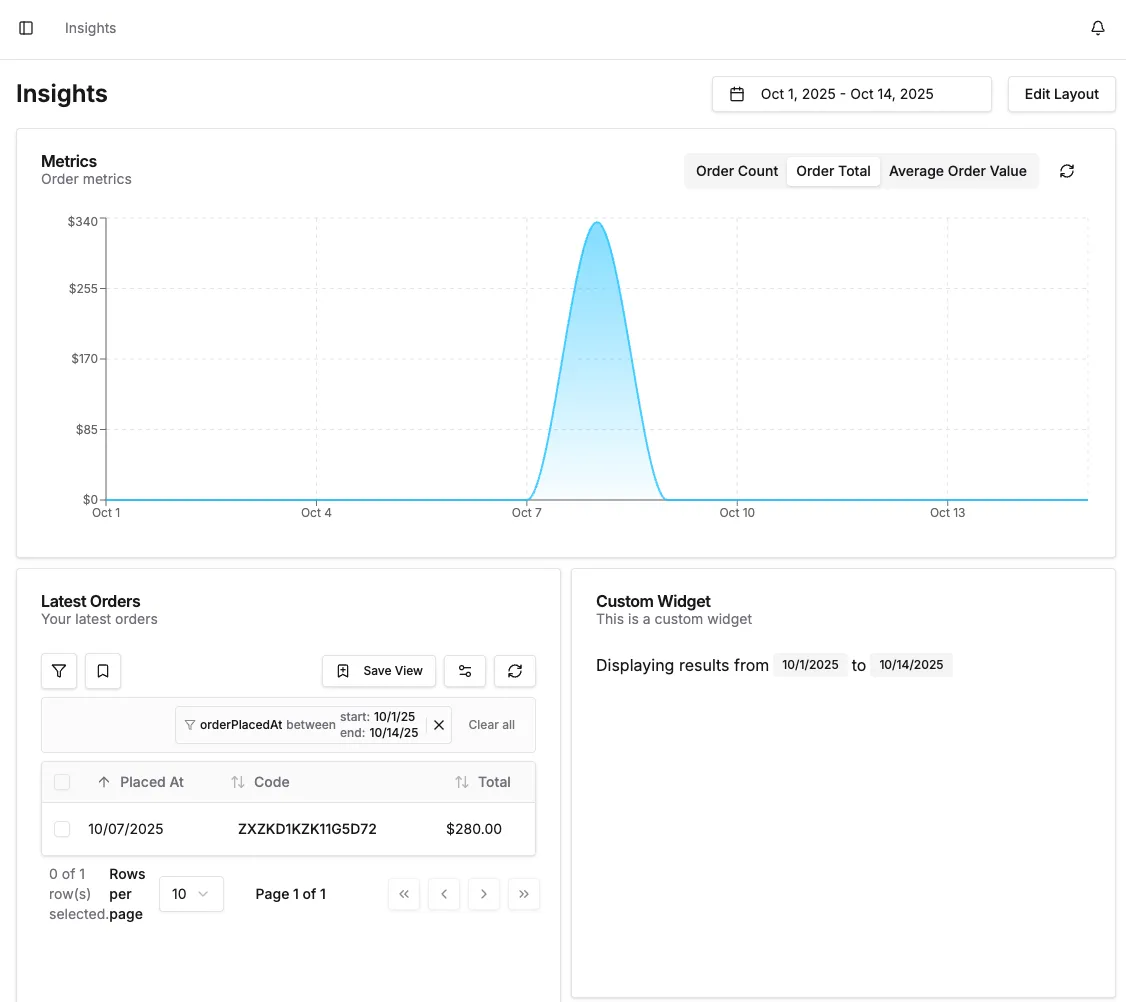
The "Insights" page can be extended with custom widgets which are used to display charts, metrics or other information that can be useful for administrators to see at a glance.
Here's an example of a custom widget:
Always wrap your custom widget in the DashboardBaseWidget component, which ensures that it will render correctly
in the Insights page.
Use the useWidgetFilters() hook to get the currently-selected date range, if your widget depends on that.
The Insights page has a single Refresh button in its action bar, and it also auto-refreshes on
an interval while the tab is open (paused while the tab is hidden and while the layout is being
edited). Both invalidate every React Query whose queryKey starts with the shared
INSIGHTS_WIDGET_QUERY_KEY prefix. To opt your widget into these page-level refreshes, prefix your
widget's queryKey with it:
This keeps refreshing explicit and per-widget: the dashboard deliberately does not refetch on window focus, so a widget whose key omits the prefix simply won't participate in page-level refreshes.
Some data cannot be aggregated or sorted efficiently by the API (for example, best sellers or
low-stock variants), so a widget may only inspect a bounded sample (e.g. the most recent 100
orders, or the first 100 variants) rather than the full data set. When your widget samples,
state the basis in its description (or a footer) and avoid absolute claims. The built-in
Top Products and Low Stock widgets follow this: Top Products aggregates only orders in
the active channel's default currency from the most recent 100 placed orders, and Low Stock
reports "No low stock in this sample" rather than "Stock levels look healthy" so a low-stock
variant outside the sample is not misread as absent.
Then register your widget in your dashboard entrypoint file using the insights object:
Your widget should now be available on the Insights page:
The top-level widgets option is deprecated in favour of insights.widgets. It still works and
is merged with insights.widgets, but will be removed in the next major version.
You can completely remove a widget from the Insights page, including built-in widgets or widgets
registered by other plugins, using insights.excludeWidgets. Excluded widgets are never rendered
and never appear in the widget picker, and this cannot be overridden by a user setting.
Exclusion is order-independent: it applies whether the excluded widget is registered before or after the exclusion is declared.
Widgets can store arbitrary configuration that survives a page reload and is scoped to the
individual user. Declare the defaults with defaultConfig on the widget definition, then read
and update the effective config inside your widget component with the useWidgetConfig() hook.
The effective config returned by the hook is your defaultConfig merged with any per-instance
overrides the user has persisted. The setter merges a partial update and persists it immediately,
independently of the "Save Layout" action.
A widget without a defaultConfig still works: the hook returns an empty object and any overrides
you persist are stored per instance.
By default a widget can appear on the Insights page at most once. Set allowMultipleInstances: true
on the widget definition to let the user add it several times. Each instance keeps its own
independent layout and useWidgetConfig() state, so combined with persisted config you can, for
example, show the same chart widget twice with different data selections.
In edit mode, multi-instance widgets are always offered in the "Add widget" picker, even when an instance is already on the page, and each click adds a fresh instance at the next free grid slot. Removing one instance leaves the others untouched; removing the last instance hides the widget just like a single-instance widget.
Alongside the built-in date range picker, you can register your own global filters via
insights.filters. A filter renders a component in the Insights page action bar, and its value is
shared with every widget on the page. This lets several widgets filter on a common constraint,
for example a selected warehouse or sales channel.
A filter definition has an id, a component, and an optional defaultValue. The component is a
controlled input: it receives the current value and an onChange callback.
Register it in your dashboard entrypoint:
Any widget can then read the current value via the useWidgetFilters() hook, using the filter's
id as the key on filters:
Changing a filter re-renders every consuming widget. Filter state is session-only: it is not persisted across reloads. Filter ids must be unique; registering two filters with the same id logs a warning and ignores the duplicate.
Architecture reviews, custom plugin work, migrations, ongoing support. Get a hand from the team that builds Vendure.
Talk to the team