In the Dashboard, all pages are built from blocks. Every block has a pageId and a blockId which uniquely locates it in the
app (see Dev Mode section).
You can also define your own blocks, which can be added to any page and can even replace the default blocks.
All available options are documented in the DashboardPageBlockDefinition reference
Here's an example of how to define a custom page block:
This will add a "Related Articles" block to the product detail page:
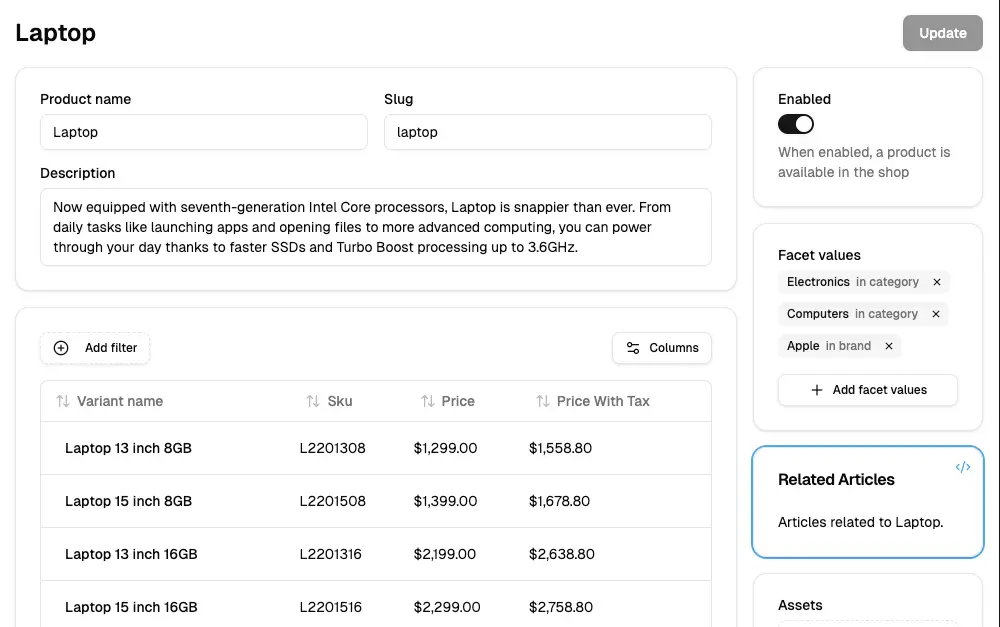
Page blocks can be positioned in three ways relative to existing blocks:
Places the block before the specified blockId:
Places the block after the specified blockId:
Replaces the existing block entirely:
Blocks can be placed in three columns:
main: The main content area (wider column on the left)side: The sidebar area (narrower column on the right)full: Takes up the full horizontal width. This is mostly useful for adding blocks to list pagesThe context prop provides access to:
entity: The current entity being viewed/edited (e.g., Product, Customer, etc.)form: The React Hook Form instance for the current page (if applicable)route: Route information and parametersThe visibility of a block can be dynamically controlled using the shouldRender function. This function receives the same
context object as the block component, and should return a boolean to determine whether the block should be rendered.
The shouldRender function can be used to hide built-in blocks by combining it with the "replace" position
on an existing blockId.
Here's a more complex example that shows different types of blocks:
To find the pageId and blockId values for positioning your blocks:
Architecture reviews, custom plugin work, migrations, ongoing support. Get a hand from the team that builds Vendure.
Talk to the team