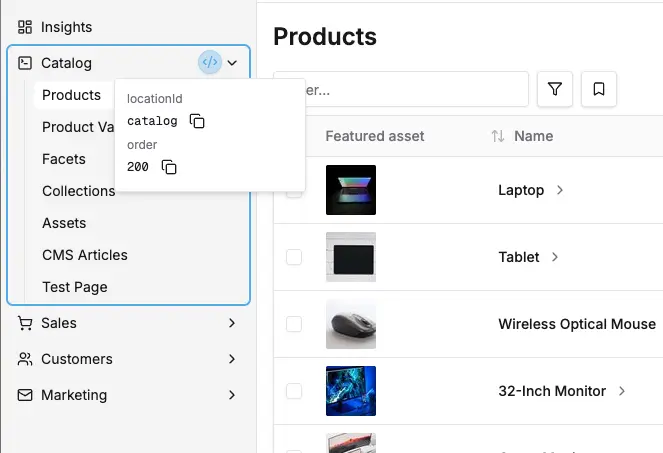
The dashboard provides a flexible navigation system that allows you to add custom navigation sections and menu items. Navigation items are organized into sections that can be placed in either the "Platform" (top) or "Administration" (bottom) areas of the sidebar.
The simplest way to add navigation is to add menu items to existing sections. This is done automatically when you define routes with navMenuItem properties.
The dashboard comes with several built-in sections that can receive route navMenuItem entries:
catalog - For product-related functionalitysales - For order managementcustomers - For customer managementmarketing - For promotions and marketing toolssettings - For configuration and admin settingssystem - For system tools such as the job queue and scheduled tasksThe Insights entry has the ID insights, but it is a top-level navigation item, not a section with child items. Do not use insights as a route navMenuItem.sectionId.
These ids, and the ids of the items inside each section, are exported as BUILT_IN_NAV_SECTION_IDS and . Prefer them over string literals wherever you target a built-in entry: if we change an id, your plugin follows it, while a hard-coded string quietly stops matching:
BUILT_IN_NAV_ITEM_IDSYou can find the available IDs & their order value for all navigation sections and items using Dev mode:
You can create entirely new navigation sections with their own icons and ordering:
For documentation on all the configuration properties available, see the reference docs:
The navigation sidebar is divided into two areas:
'top'): The "Platform" area for core functionality (Dashboard, Catalog, Sales, etc.)'bottom'): The "Administration" area for system and configuration sections (System, Settings):::important Order Scoping Order values are scoped within each placement area. This means:
Top Placement (Platform):
Bottom Placement (Administration):
This means if you want to add a section between Catalog and Sales in the top area, you might use order: 250. If you want to add a section between Settings and System in the bottom area, you could use order: 150.
If you don't specify a placement, sections default to 'top' placement.
The navSections property can also be a function. Use this form when you need full control over the existing navigation structure, including moving, removing, renaming, or reordering built-in sections and items. It runs once, at registration time, so it cannot depend on who is logged in. For changes that vary per user, see User-Aware Navigation below.
The function receives the fully registered navigation config after all array-form navSections and route navMenuItem registrations have been applied. Return a new config object rather than mutating the input.
Use Dev Mode or the Extension Targets reference to find built-in navigation IDs.
The isVisible predicate decides per administrator whether an entry is shown. It receives a DashboardUserContext and is evaluated on every nav render.
Where you declare the predicate depends on whose entry it is. Your own entries take isVisible directly. For a built-in entry, or one belonging to another plugin, attach the predicate from the function form of navSections.
The function form of navSections runs once, at registration, and sees the fully assembled config. It has no access to the logged-in administrator. The isVisible predicate it attaches is evaluated later, on every nav render, with the user context.
This example leaves floor staff with only the point-of-sale section:
keepOnlyNavEntries hides every entry not named, and naming a section keeps all of its items. The third argument applies that hiding only to the administrators the predicate matches. Without it, every entry not named is hidden from everybody.
Entries are named by kind. sections holds the ids of the top-level entries, items the ids of the entries nested inside them. The two are separate because a section and one of its items may carry the same id, as the built-in Customers section and Customers item do.
The other helper, setNavVisibility, names the entries the predicate applies to instead of the entries to keep:
Prefer setNavVisibility and keepOnlyNavEntries over spreading isVisible yourself, because a plain spread silently discards a predicate that another plugin already set on the same entry.
navSections is either the array form or the function form, never both. A plugin which declares its own section and also adjusts the assembled menu needs two defineDashboardExtension calls. The array form has to run first, so that a route's navMenuItem.sectionId has a section to attach to.
An id which matches no entry has no effect, and with keepOnlyNavEntries one typo hides every other entry. The dashboard warns about unmatched ids in development. For built-in entries, BUILT_IN_NAV_SECTION_IDS and BUILT_IN_NAV_ITEM_IDS remove the possibility.
When the entry is one you declared, isVisible is the shorthand. It is available on nav sections and on route navMenuItem entries, and is ANDed with requiresPermission: both must pass for the entry to appear.
On a section, returning false hides the section and all of its items. A section is also dropped once every item inside it is hidden, since expanding it would show nothing.
ctx.hasPermissions() is evaluated against the active channel. ctx.roles is not: it lists every role the administrator holds, on any channel. If you need channel-scoped role logic, check the role's channels yourself:
hasPermissions() has OR semantics despite the plural name. It returns true when the administrator holds ANY of the listed permissions on the active channel, not all of them.
An isVisible predicate runs on every nav render, and the framework makes no promise about how often. Keep it pure, synchronous and cheap: do not fetch data, do not mutate anything, and do not depend on how many times you are called.
A navSections function runs only once, but it is handed the framework's own section objects. Mutating a section or its items array in place corrupts the menu for the rest of the session. Always return new objects, as setNavVisibility and keepOnlyNavEntries do.
isVisible predicates are ANDed. When setNavVisibility or keepOnlyNavEntries add a predicate to an entry that already has one, both are kept and both must pass. Any plugin can hide an entry, and no plugin can force one to appear.
navSections functions are chained in registration order, which follows the order of the plugins array in your Vendure config. Each receives the previous one's output. Where two of them rebuild sections and disagree about the result, the later one wins.
Registration and modification happen at different times. Every navSections array entry and every route's navMenuItem, from every plugin, is collected before any navSections function runs. A navSections function therefore always sees the fully assembled menu, including entries contributed by plugins registered after it. Reordering the plugins array does not change which entries it can see.
keepOnlyNavEntries is a whitelist, so it hides entries added by other plugins just as readily as built-in ones:
A whitelist is usually what you want for a locked-down role, since a plugin installed later cannot widen what the user sees. If you would rather stay open to other plugins, name their ids alongside your own, or hide the specific built-in sections with setNavVisibility instead of keeping only your own. The trade-off is that a section added by a future Vendure release would then be visible until you exclude it.
Hiding a nav entry changes what the dashboard renders and nothing else. An administrator who can call an operation on the Admin API can still call it, whether or not the dashboard shows a link to it. Real access control belongs on the server, in the permissions attached to your GraphQL operations and resolvers.
BUILT_IN_NAV_SECTION_IDS and BUILT_IN_NAV_ITEM_IDS keep working when an id is renamed, and turn a removed id into a compile error. Neither constant covers restructuring: a future release could move an item into another section or drop it. When you target a built-in entry, re-check the sidebar after upgrading.
By default, all navigation is assumed to be for authenticated routes, i.e. the routes are only accessible to administrators who are logged in.
Sometimes you want to make a certain route accessible to unauthenticated users. For example, you may want to implement a completely custom login page or a password recovery page, which must be accessible to everyone.
This is done by setting authenticated: false in your route definition:
This page will then be accessible to all users at http://localhost:4873/dashboard/public

Here's a comprehensive example showing how to create a complete navigation structure for a content management system:
The dashboard uses Lucide React icons. You can import any icon from the library:
Common icons for navigation sections:
FileTextIcon, EditIcon, BookOpenIconImageIcon, FolderIcon, UploadIconBarChartIcon, TrendingUpIcon, PieChartIconWrenchIcon, SettingsIcon, CogIconLinkIcon, ZapIcon, PlugIconArchitecture reviews, custom plugin work, migrations, ongoing support. Get a hand from the team that builds Vendure.
Talk to the team