Assets
Assets are used to store files such as images, videos, PDFs, etc. Assets can be
assigned to products, variants and collections by default. By using custom fields it is
possible to assign assets to other entities. For example, for implementing customer profile images.
The handling of assets in Vendure is implemented in a modular way, allowing you full control over the way assets are stored, named, imported and previewed.
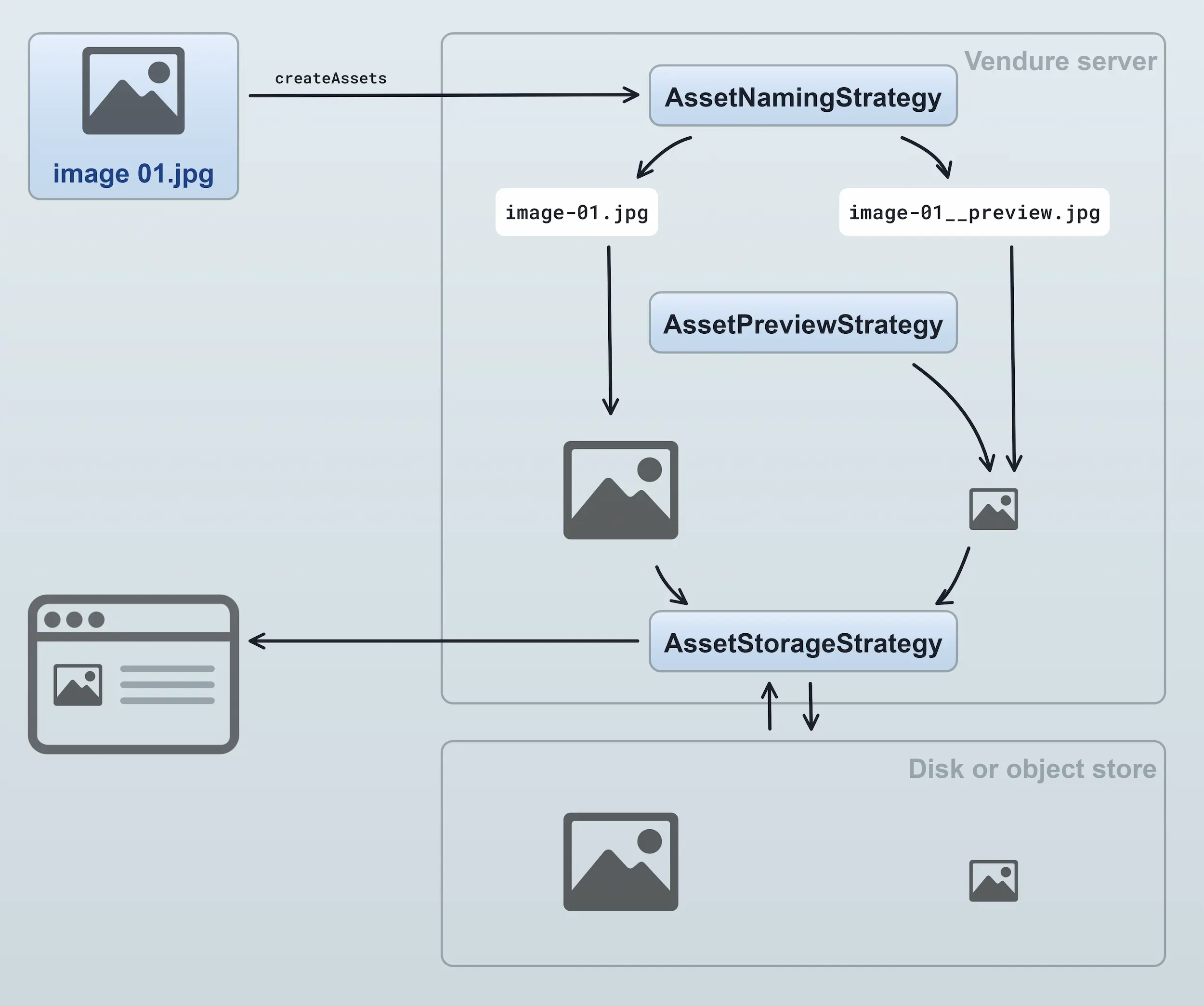
- An asset is created by uploading an image. Internally the
createAssetsmutation will be executed. - The
AssetNamingStrategyis used to generate file names for the source image and the preview. This is useful for normalizing file names as well as handling name conflicts. - The
AssetPreviewStrategygenerates a preview image of the asset. For images, this typically involves creating a version with constraints on the maximum dimensions. It could also be used to e.g. generate a preview image for uploaded PDF files, videos or other non-image assets (such functionality would require a customAssetPreviewStrategyto be defined). - The source file as well as the preview image are then passed to the
AssetStorageStrategywhich stores the files to some form of storage. This could be the local disk or an object store such as AWS S3 or Minio. - When an asset is later read, e.g. when a customer views a product detail page which includes an image of the product, the
AssetStorageStrategycan be used to read the file from the storage location.
AssetServerPlugin
Vendure comes with the AssetServerPlugin pre-installed, which provides ready-made strategies for asset handling, a powerful image transformation API (resize, crop, format conversion via query parameters), and support for custom storage backends such as AWS S3 or Minio.
Info
See the AssetServerPlugin docs for a detailed description of all the features.
Asset Tags
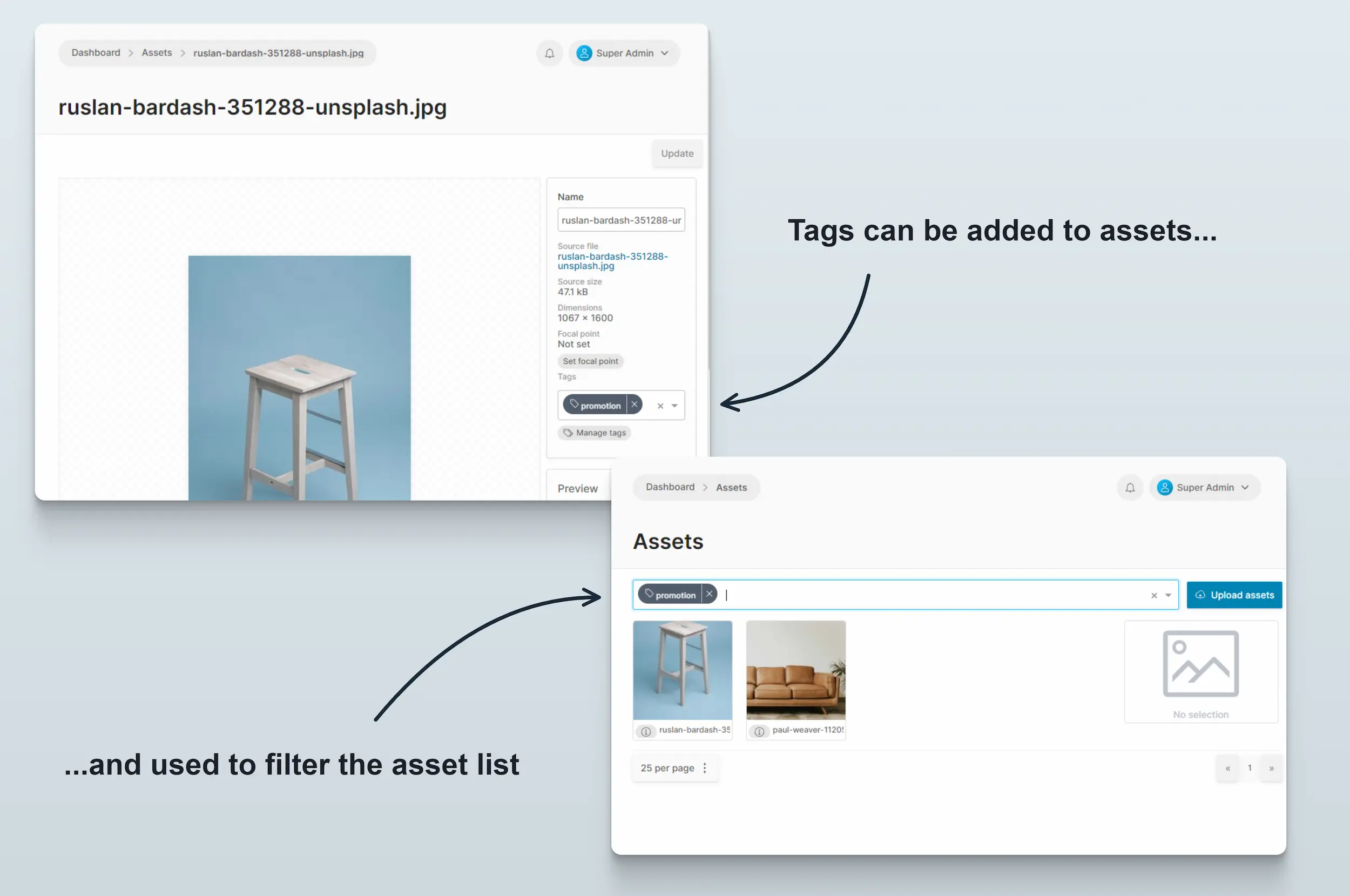
Assets can be tagged. A Tag is a simple text label that can be applied to an asset. An asset can have multiple tags or none. Tags are useful for organizing assets, since assets are otherwise organized as a flat list with no concept of a directory structure.
Was this chapter helpful?